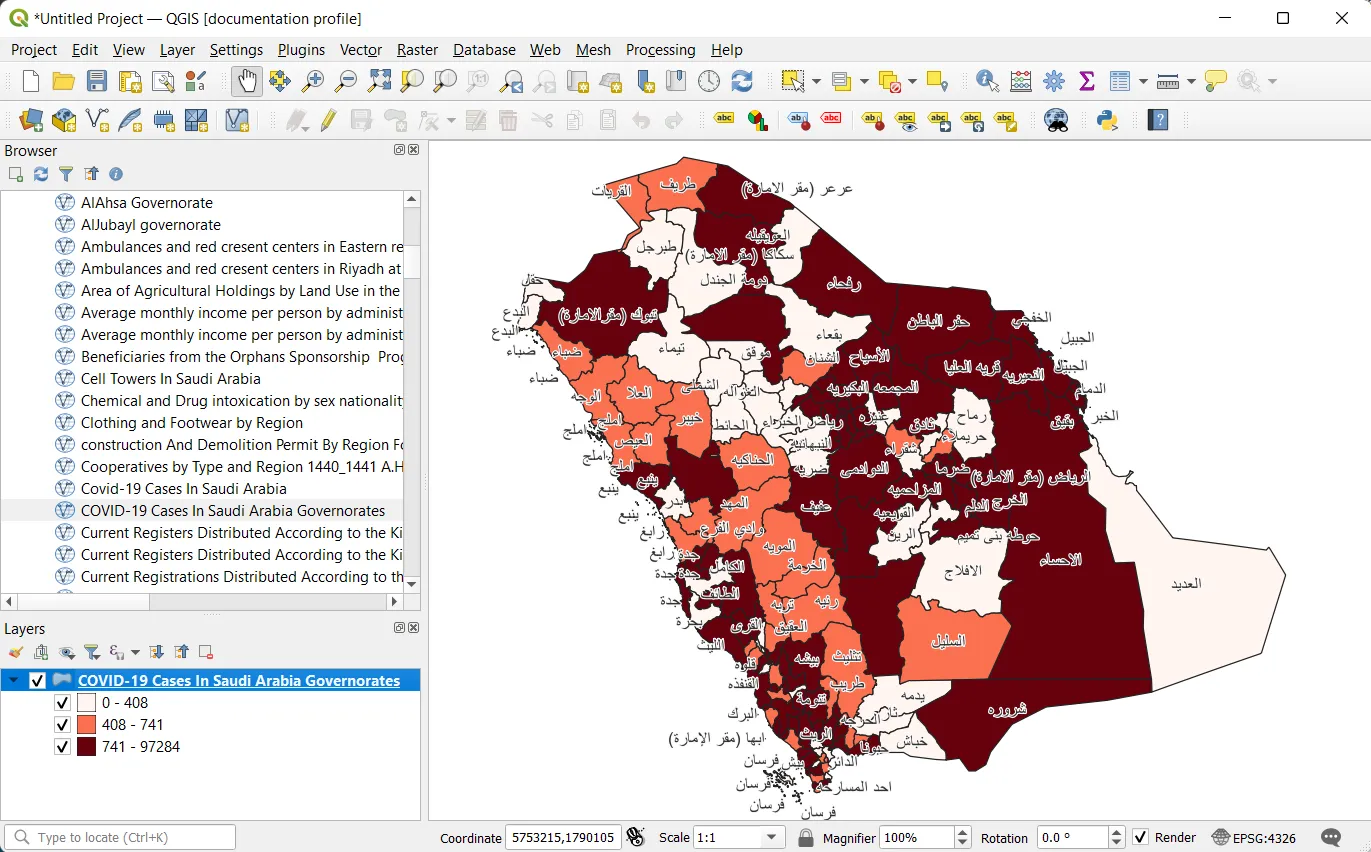
Step 1
To import your WFS in QGIS, go in the Browser Panel, find WFS/OGC API-Features, right click on it and click on New Connection...
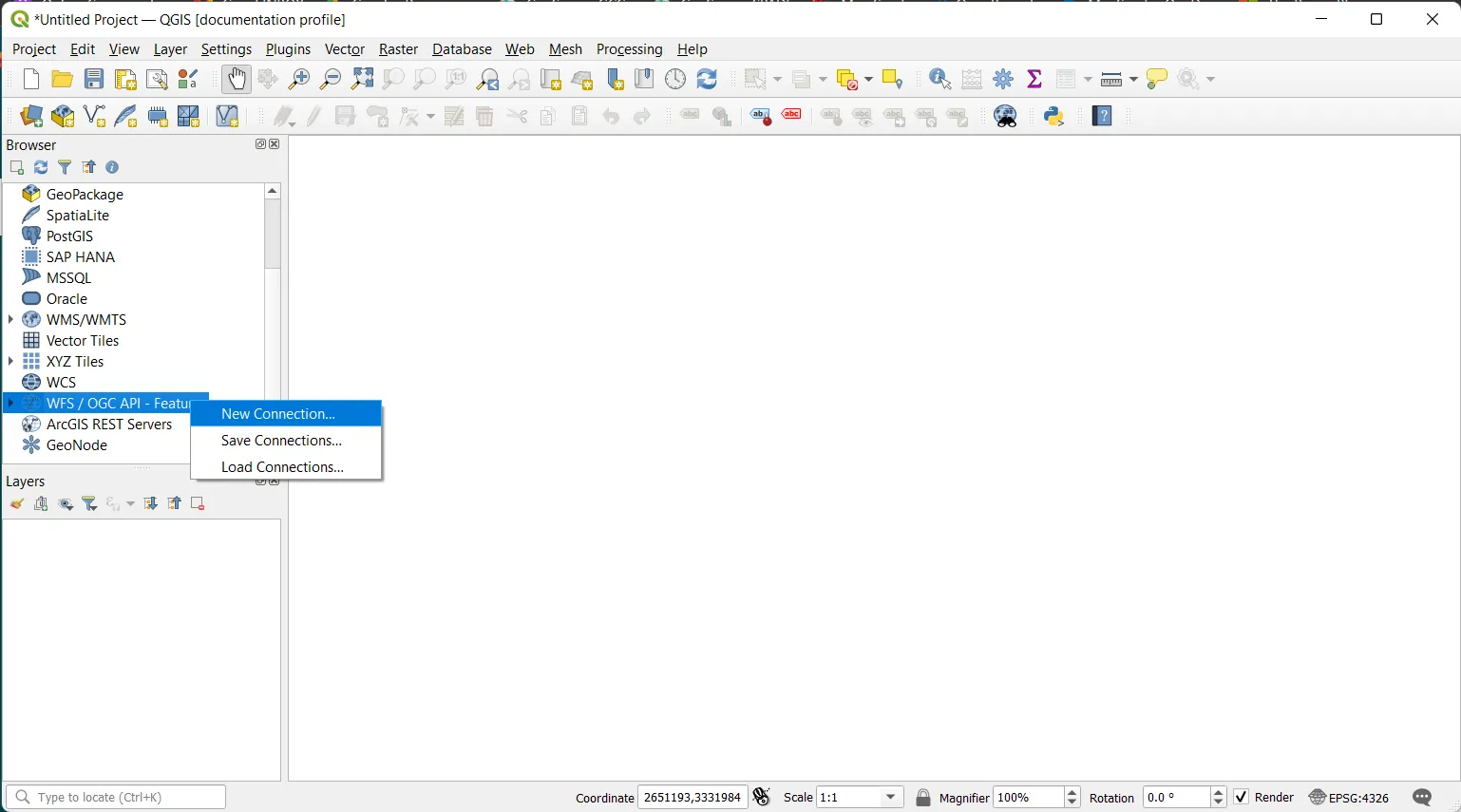
Step 2
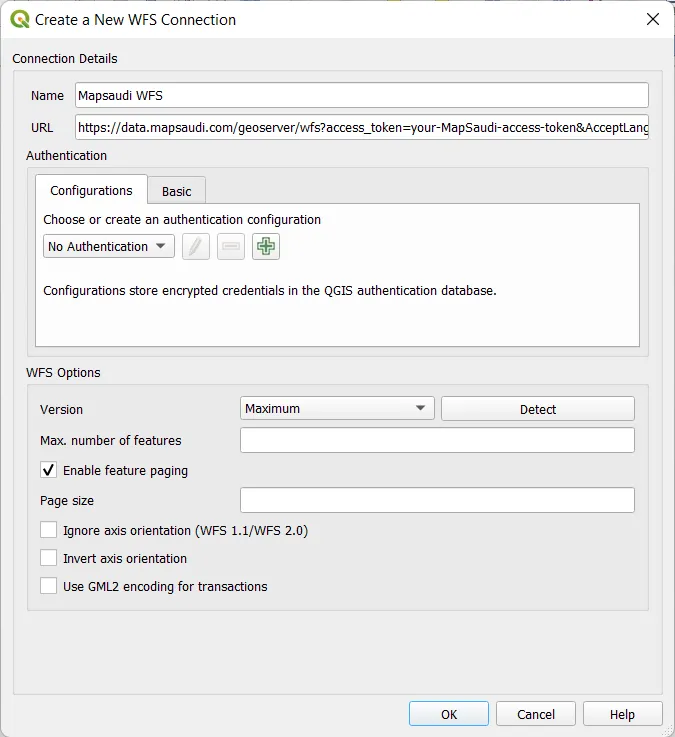
A new window opens with settings to configure:
- Name: Name of the layer you will create. We will use tabaqat for our example, but you are free to choose what ever you want.
- URL: Path to the WFS file or HTTP link to import. We will use a HTTP link from tabaqat here. Other settings are left empty in our case. Your new connection will be added in WFS/OGC API-Features section on Browser Panel.
Step 3
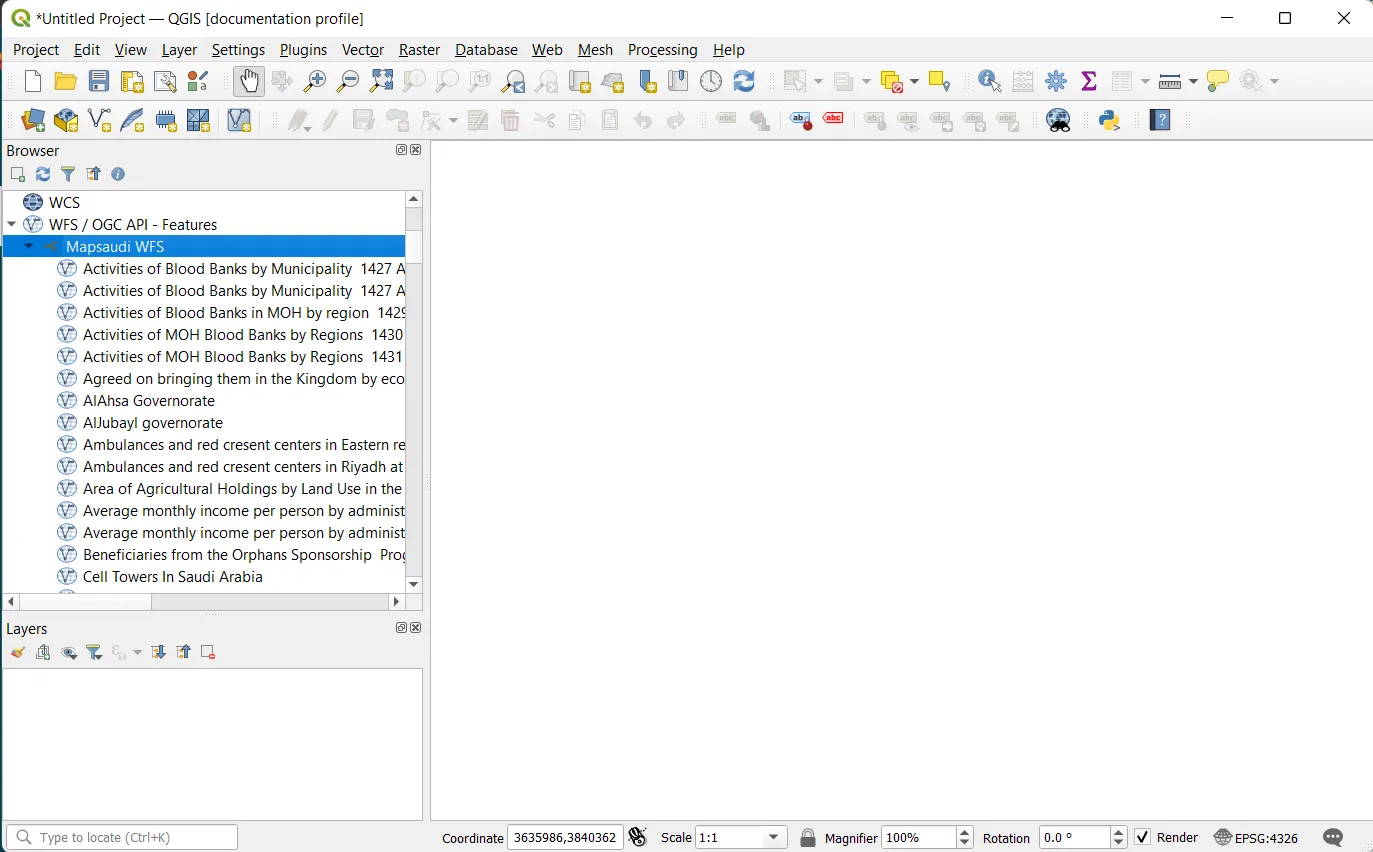
Open your WFS/OGC API-Features dropdown from you Browser Panel and find your new connection. You can open the tabaqat dropdown further to find the vector data categories
Step 4
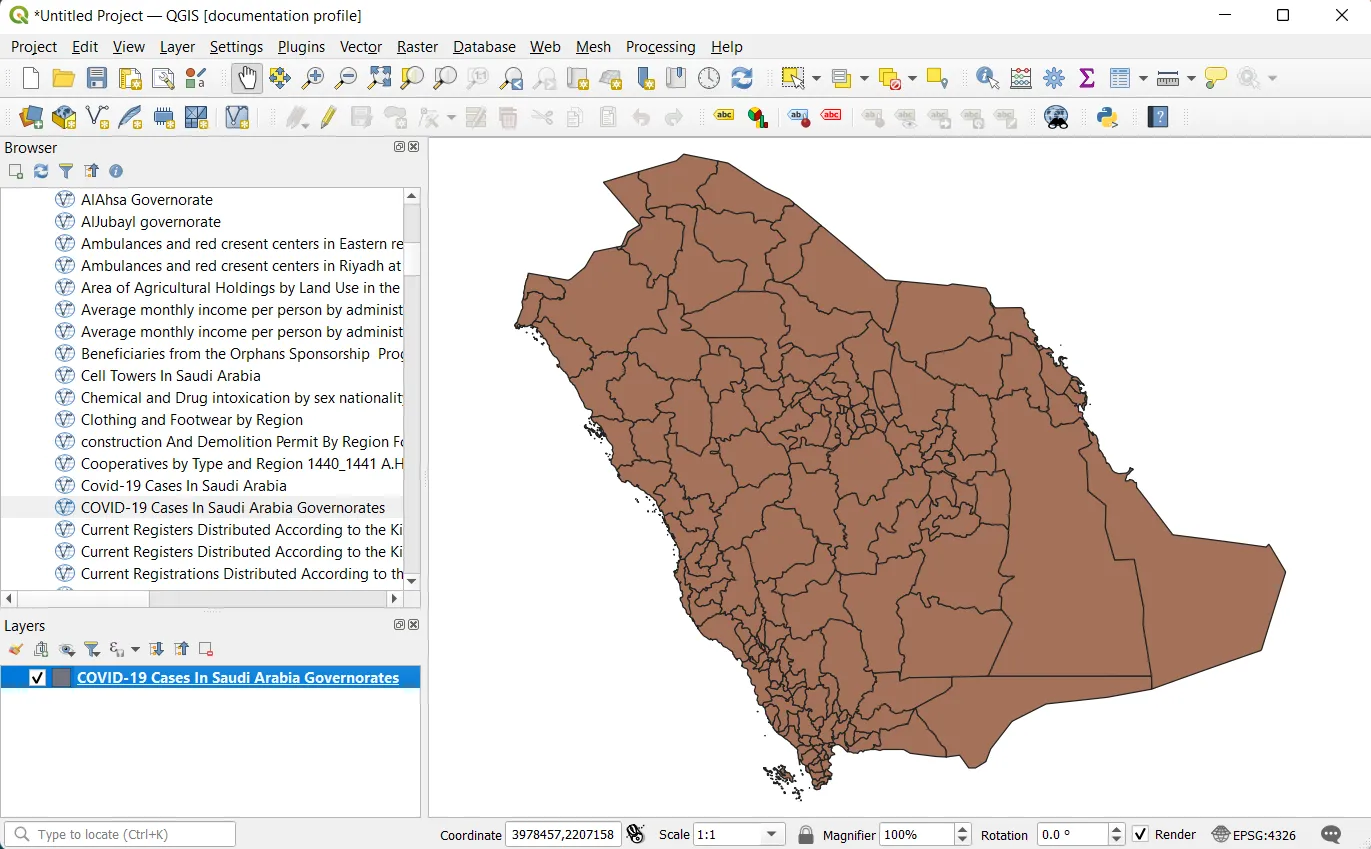
Open tabaqat dropdown from you Browser Panel with data categories. Double click on your layer and voilà.
Premium Step
You can do any selection, analysis, custom styling.