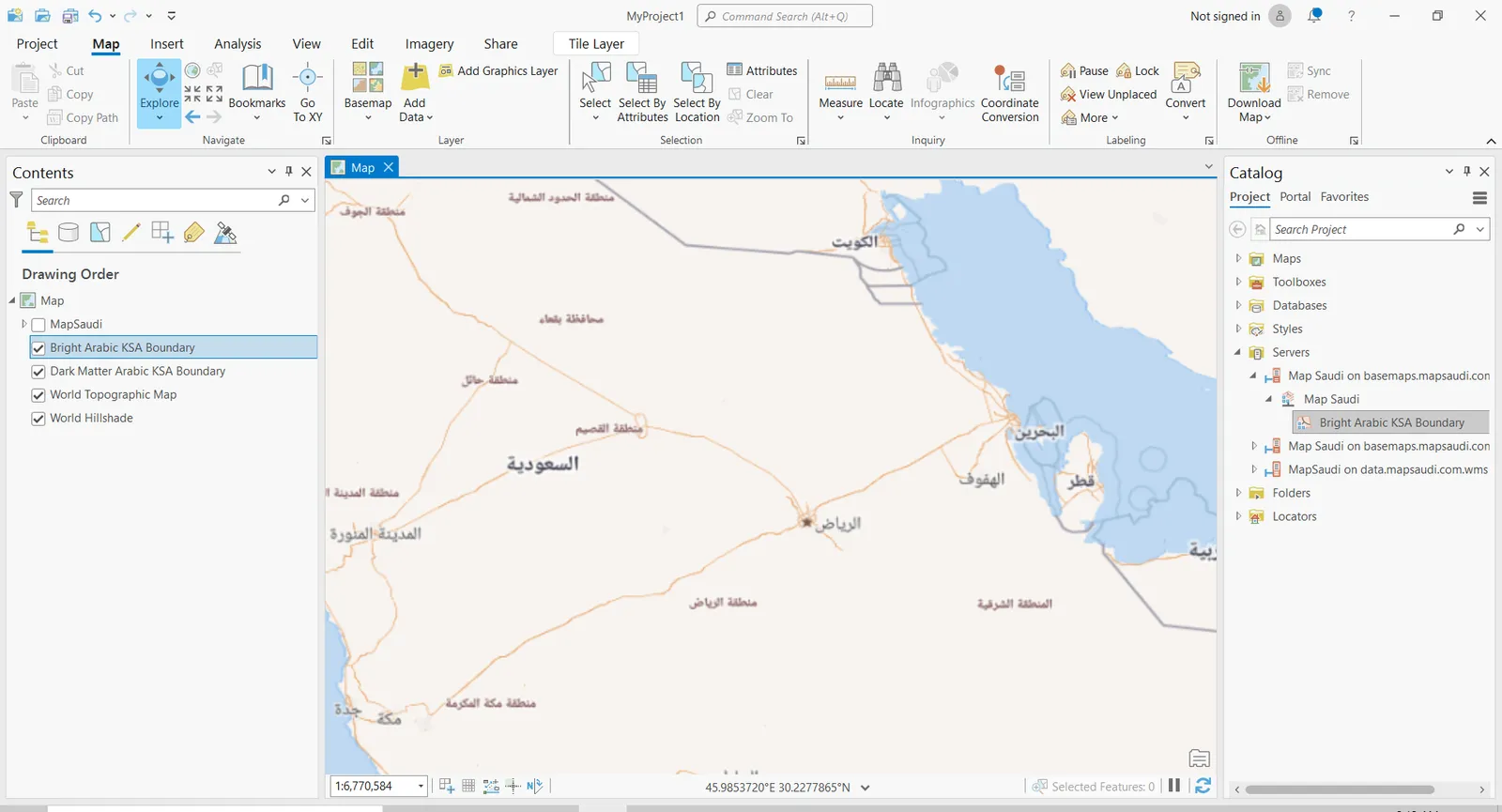
Requirements
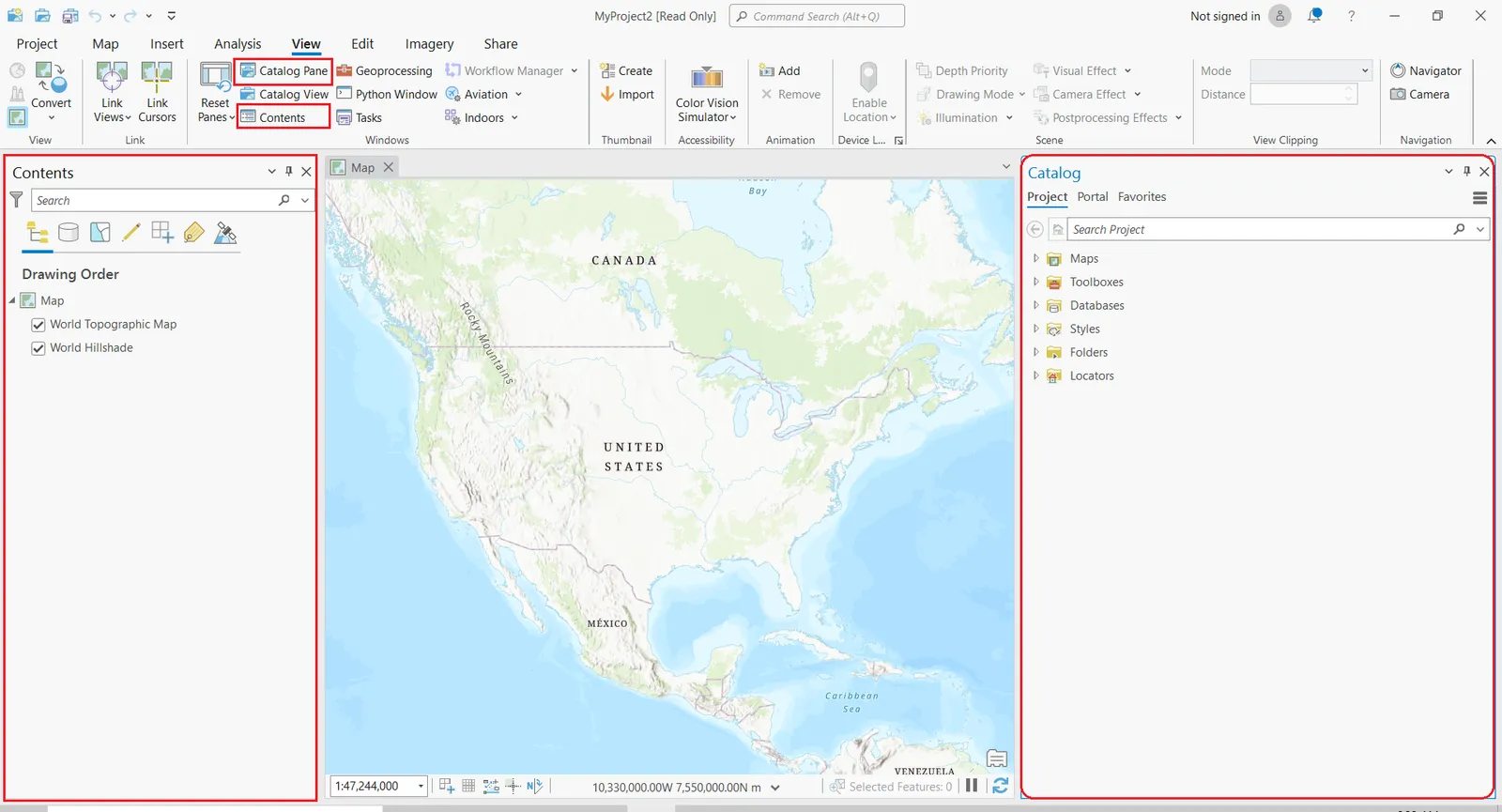
Make sure that Catalog Pane and Contents are on. Click on the View tab on top of the ArcGIS Pro window, then click on Catalog Pane and Contents in the Panel section.
Step 1
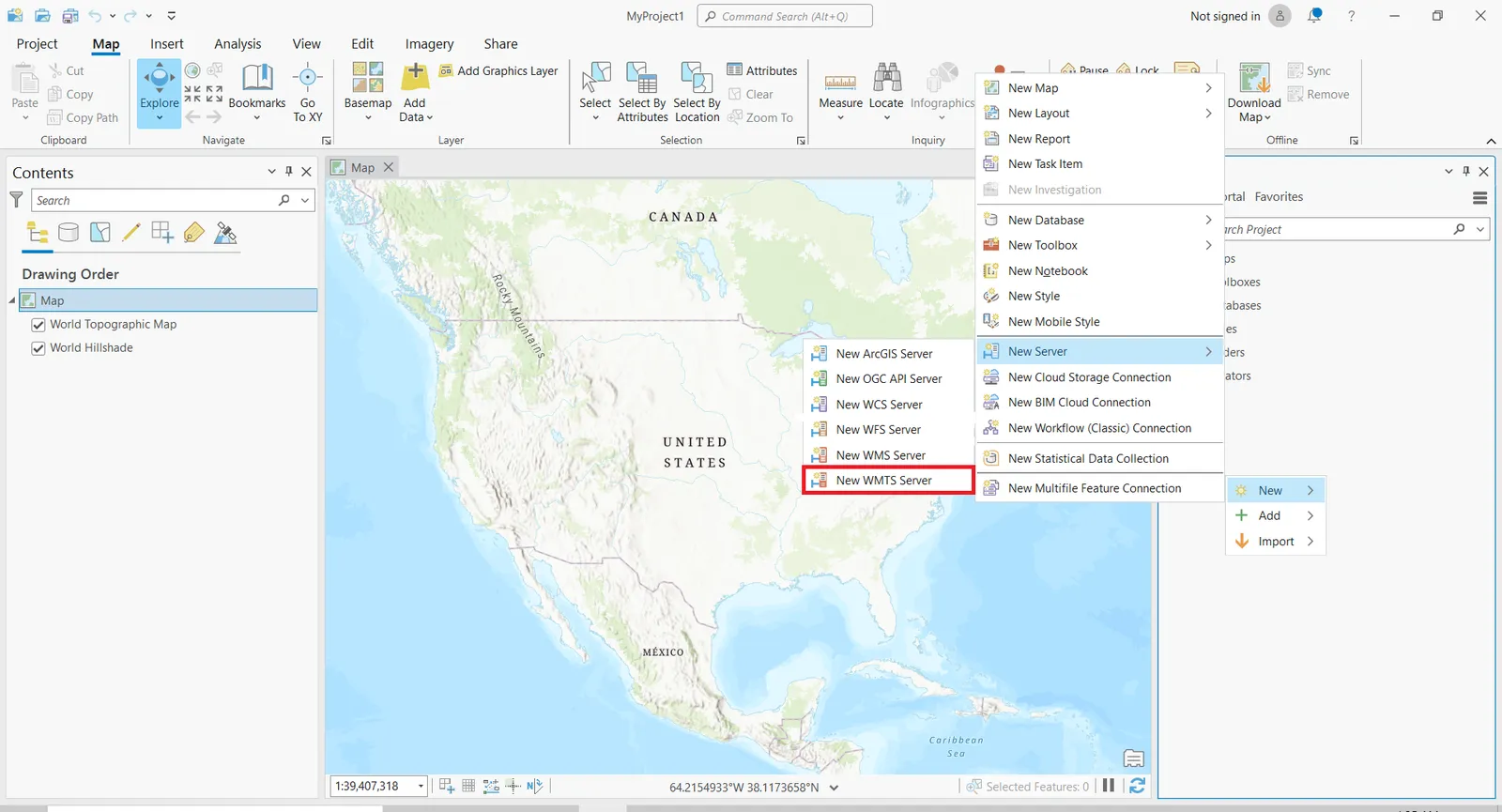
To import your WMTS in ArcGIS Pro, go to the Catalog Pane, right click in there and select New then select from the sub menu New server, then select New WMTS server
Step 2
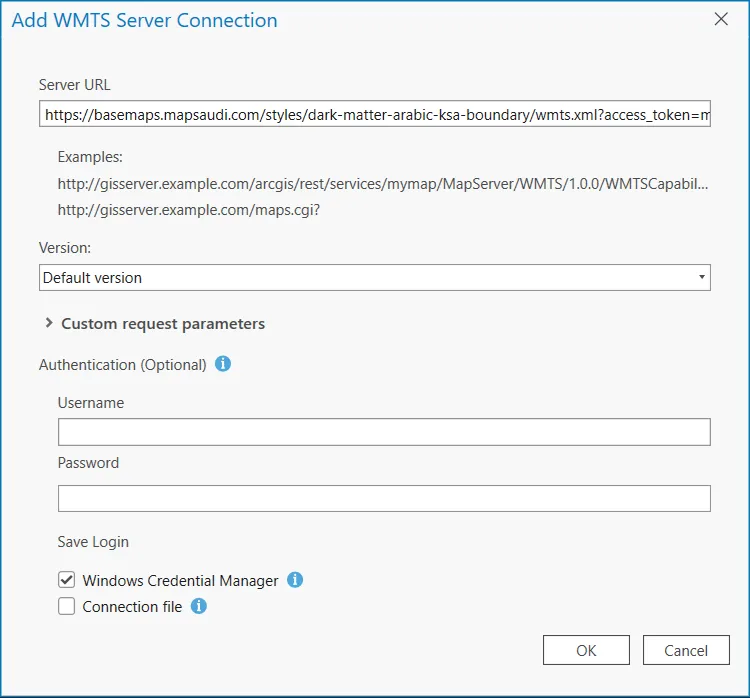
A new window opens with settings to configure:
- Server URL: Path to the WMTS file or HTTP link to import. We will use a HTTP link from tabaqat here. Other settings are left empty in our case. Your new connection will be added in Projects tab in the Catalog in Servers.
Step 3
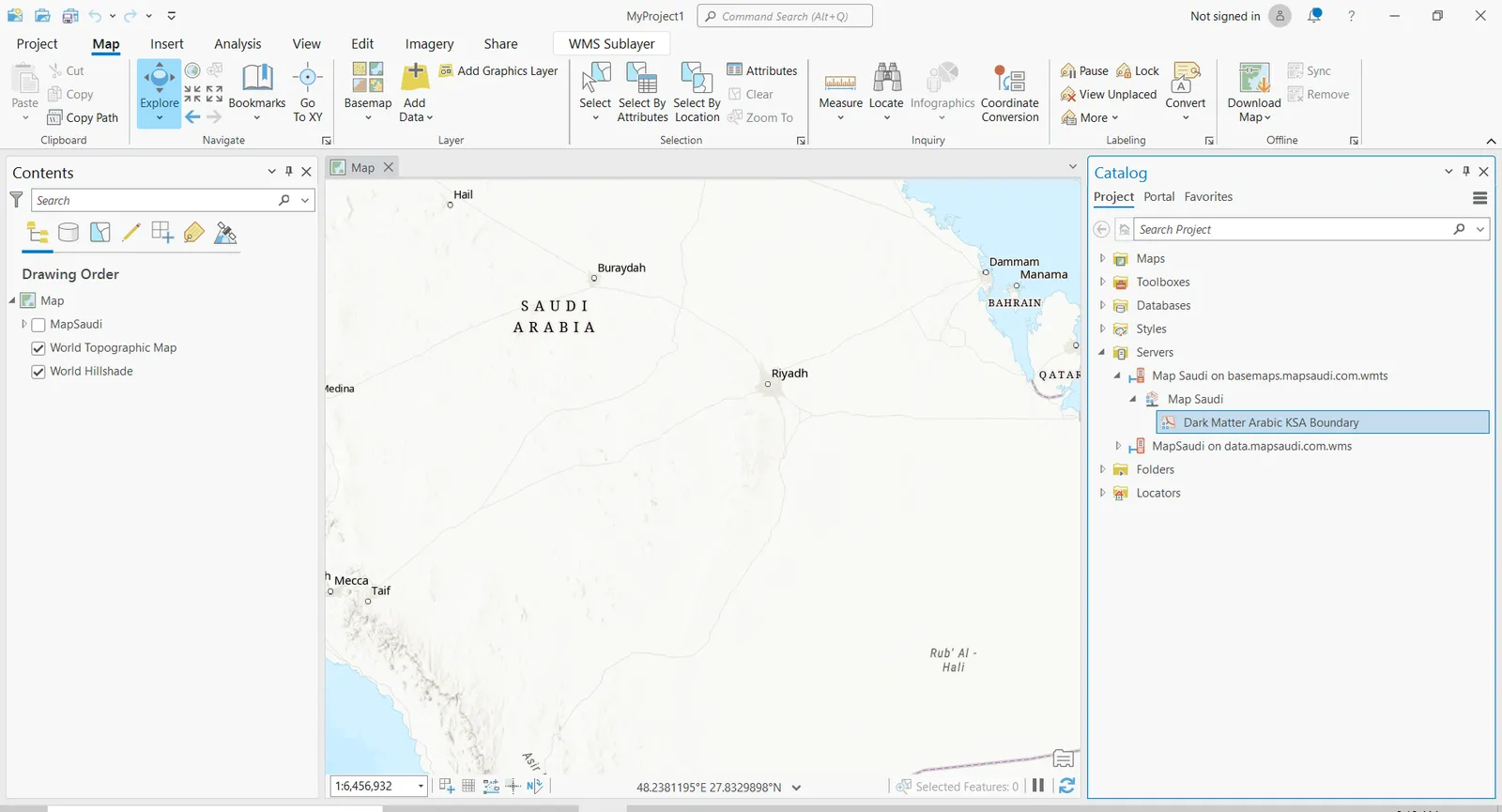
Open your tabaqat connection dropdown from you Servers and find your new connection. Drag and drop your layer in the map windows and voilà.